Wednesday, 19 December 2012

Download Complete Microsoft .NET Framework 4.5 Setup

Microsoft .NET is a must program for every PC as almost all the new applications in windows wont run without .NET framework.The Microsoft .NET Framework 4.5 is useful for programmers and developers.
Previously Microsoft used to provide only online installers which requires Internet connection for installing the whole package.But with the current version of 4.5 they are providing both online installer and offline installer as well.

.NET is an inbuilt feature in Windows 8:

If you are using windows 8 then microsoft .net framework is already part of this operating system.All you need to do is to update your windows 8 OS in order to update .NET framework 4.5 installation.

There are many problems with online installers like:

  • The installation may hang forever if you have slow internet connection like dial-up, GPRS, etc.
  • You cannot use it if you are not connected to internet.
  • If you are using pirated version of windows then its better to stay away from softwares/installer from Microsoft which connects to Internet.

Advantages of Offline Installer:

  • No trouble with installation even without internet connection.
  • You can install .NET framework on multiple computers even without internet connection.

Microsoft .Net Framework 4.5 Requirement:

  • O.S:Windows Vista SP2, Windows 7, Windows Server 2008 R2 SP1 (x64)and Windows Server 2008 SP2 (x86 and x64).
  • Hardware Requirements:512 MB RAM, 850 MB available space for (X86) and 2 GB space for (X64) versions.

Here I will be providing links for both offline and online installer as well:

  • Online Installer is about 982 KB.
  • Offline installer i.e complete Framework is about 48MB.

Direct Download Links to Offline Installers:

Microsoft .NET 4.5 Offline Installer (works for both 32 bit and 64 bit). 
Microsoft .NET 4.5 Online Installer (for both 32 bit and 64 bit).
.NET Framework 4.5 language pack – Deutsch
.NET Framework 4.5 language pack – French
.NET Framework 4.5 language pack – Italian 
Note:The above links are authenticated and hosted by Microsoft's Servers. 

Legal Mp3 Songs Downloads With Iomoio.com

Hello people! I'm pretty much sure that you all are fond of playing music. Aren't you? By the times, music is like a drug for all kind of people who are living here. And we all well aware that there's music for each and every kinds of situations. If you're sad, happy, romantic, in love, heartbroken, partying, birthday or anything else. There are a lot of songs which can support you in these situations. Read on!
Many of you might have faced some problems with downloading your favorite songs or it requires some legal way and all. But here all your questions will be solved out. Just keep your eyes here and start to learn how to download Legal Mp3 songs? I'm going to introduce a brand new way to download your favorite songs. So, let's get started!

Downlaod Mp3 Music from a legal way:

Download Mp3 songs from www.iomoio.com/. If you're not aware of this site then you should need to know more on this. Let's see what's new here and how it can be helpful to download MP3 songs. Here we go!
Iomoio allows user to let download his/her favorite songs with a simple way. Before to use this feature, you should register your e-mail id on a register corner. And you will find out an amazing offer, which gives you two mp3 songs for free. Yes, after doing registration it allows you to download your two favorite songs for free.
After registering and completing the process you should start surfing the site with a manner. Here, you will find out well designed and a lovable homepage. There are many different categories of songs which makes an ease of using this site. It is just well designed and looks perfect.
Home page looks just amazing. Here, you will find out all the latest movements of this music world. All the different new albums with nominal price tags appeared here so you could have many options right away. This is the legal way to download all your favorite songs for nominal bucks. Quality of music is here with 320 KBPS songs with an effective way!

Categories of Soundtracks:

Artists

Here, in this category you will find your entire favorite artists list right away. Click it up on your favorite artist and get the entire songs list right away on your screen.

Soundtracks

Here, you will find out many popular and hit songs. So you need not to go anywhere for searching the most demanding MP3songs online as of the current time. All the songs you will find out here.

New Albums

All the new released albums of your favorite artists are here. You just click on to the album and get started downloading the songs. Easy!

Coming Soon

Song or Albums which are about to come are here. All the foth coming songs or albums are here so with this you can have all the details of the future time also.
So people, if you're willing to go with the legal way to download your favorite MP3 songs,  http://www.iomoio.com/is the perfect one for you. Check it and make it, it won’t let your feelings go down. Start downloading your songs and enjoy the life!

Tuesday, 18 December 2012

Create Your Own Website With Ucoz Free Website Builder

Website is an important aspect for each and every organization, whether it is a small one or a big one. Website helps you to lead you in your business category field, because it connects your clients and global clients as well. Website make you enable to let convey your business globally. Nevertheless, website looks like a trend and everyone wants to own their own website, may be just for fun or for gaining respect. Whatever the matter should be, website is just an answer.
Gradually people have learned how to build a website, but there are still some people who don't know how to build them? What cost does it takes? How to run it on Web? What should be the proper way to maintain it? And a lot more. Well, here we are going to show you a tremendous way to answer all your questions. For that all you need to do is just start building a website right away with uCoz.

uCoz- Free Website Builder :

uCoz is a unique yet very effective website builder that allow you to easily create your own unique website right away. It help you to make it fully functional for free. Yes, uCoz provides all these for absolutely free of cost.
uCoz is the best and easy way to getting started with. uCoz has a huge team called as The uTeam. uTeam has many young and enthusiastic team members which constantly works on keeping the service up to date and giving all the answers of its clients. And it makes a good sense here, because service is better than the selling. And maybe this is the reason why uCoz has grown like this!
Gradually uCoz has become like a great industry which enables thousands of willing people to build their own website for free and it’s more like a noble cause that it is being delivered to the world. Plus, uCoz provides quantity and quality of work. More than 1,000,000 active Websites prove all the claims of uCoz. Plus each day this number of active user is incredibly increasing.
uCoz runs on globally and for this it is being working on many different markets which enables all kind of different users to let make their websites right away. More than 13 language localities provide by uCoz and 7 years of steady service makes uCoz a reputed one! Let's see the features of uCoz,

Effective features of uCoz :

  • Domain names
  • Site's data backup
  • 250 default templates
  • 22 modules, thousands of widgets and a lot more gadgets
  • modern CMS
  • Great user support
One more question should be there in your mind and this would be the last one. Like why should I go with ucoz? Well, hold on to it. Here's the proof why should you go with uCoz free website maker and not with the others.

Why should you go with uCoz?

  • More than 1,000,000 Active Websites
  • uptime 99%
  • More than 7 years of experience
  • 13 language localizations
  • 100 million website views per day
These were the legal facts which enable you to let make your website on uCoz. uCoz has a huge data base and a number of new templates on each and every kind of required website. It will make you sure that with uCoz even a newbie can build up his own professional website. So, if you decided to build your own website, try uCoz.com first to save bucks!

Monday, 17 December 2012

Trick to Get Back Old Youtube Look / Layout [Video]

Recently Youtube rolled out new look for all users.The new look was intended to increase number of views for a particular channel but it got strong disapproval from most of the users.This is quite common,whenever a popular website rolls out new design most of the users start hating it.Same was the case with Facebook,as soon as facebook rolled out timeline most of them looked for ways to remove facebook timeline but now they got habituated to it.It will take some time to get adapted to new changes.If you want to revert back to old youtube interface here is a simple and 100% working trick.

Trick to Revert Back to Old Youtube Layout /Look:

Here we explained a simple trick to get old youtube interface for two primary browsers Google Chrome and Firefox.
New Youtube Look
Old Youtube Layout

Get Old Youtube Layout on Google Chrome:

  • Open Youtube.com.
  • Press  Ctrl + Shift + J
  • Now a window will popup ,choose Console option.
  • Then copy and paste the following piece of code and hit Enter .
document.cookie="VISITOR_INFO1_LIVE=qDpUsBNO0FY; expires=Thu, 2 Aug 2020 20:47:11 UTC"
  • After you are done with that close and restart the browser.
  • Now you should get the old youtube layout back.

Get Old Youtube Look On Mozilla Firefox:

  • Go to Youtube.com.
  • Press  Ctrl + Shift + K
  • Now a window will popup ,choose Console option.
  • Then copy and paste the following piece of code and hit Enter .
document.cookie="VISITOR_INFO1_LIVE=qDpUsBNO0FY; expires=Thu, 2 Aug 2020 20:47:11 UTC"
  • After you are done with that close and restart the browser.
  • Now you should get the old youtube look back.
Check out the Video Tutorial for Quick Demonstration:

How to Revert Back to New Look Again?

Well its quite simple to revert back to the present look.All you have to do is to clear cookies in your respective browser.It will bring back the new look back.

Conclusion:

Though the new look has received alot of hatred ,people will get adapted to it as the time passes.If you have any trouble in following above trick let us know in your comments.

How to Increase Youtube Buffering Speed

We all know that Youtube is the best video sharing network with more than 3 Billion views per day.All of us watch youtube videos.But the toughest part comes when youtube videos buffers(Especially when you have a slow Internet connection).In this article I will be sharing some Tips to Increase Youtube Videos Buffering Speed.

    On What Factors Does Youtube Buffering Speed Depend?

    • Its very simple,youtube videos buffering speed mostly depends on your Internet Speed.
    Anyways if you have a slow internet connection then here are some Tweaks using which we can boost youtube buffering speed.

    Tips To Speed Up Youtube Videos Buffering:

    1.Increase your Internet speed by 20%:

    This is a very old trick to Increase your Internet Speed.This trick increases your net speed by 20% which means you are increasing your youtube videos buffering speed as well.

    Microsoft windows reserves 20% of your available bandwith for their own purposes like updates and interrogating with your PC etc.This should be undone immediately to enjoy full ISP Speed.
    Follow these steps to increase your Internet Speed by 20%:
    • Click on start, select run and type "gpedit.msc".
    • select to LOCAL COMPUTER POLICY>COMPUTER CONFIGURATION>ADMNISTRATIVE TEMPELATES>NETWORK> QOS PACKET SHEDULER>LIMIT RESERVABLE BANDWITH.
    • Double click on "limit reservable bandwith" and then select "Enabled" snd edit the bandwith to O.
    • Its a nice trick...!! try it and get internet speed 20% more..!!
    Note:For some versions of windows like windows home and basic versions don't have gpedit.msc command,in that case just ignore this trick not a big deal and follow the below tricks.

    2.Join Youtube Feather Beta:

    This is a new Youtube Project called Youtube Feather Beta.
    Go to Youtube Feather Beta[this link] and click on join youtube feather beta.Now search for videos and start watching,you should have already found the difference in speeds before and after.
    Limitations:
    • In youtube feather beta you dont see many comments.
    • You will not be able to like or dislike the video.
    • You will get only 5 suggested or related videos.
    The bandwidth which is used to load these things will be utilised to speed up the videos.If you dont like this version then you can leave youtube feather beta at any time.

    3.Use Youtube DNS:

    Using Youtube open DNS will help you in speed up the youtube video buffering.
    For Windows XP users:
    • Go to Control Panel from the Start menu.
    • Click on Network Connections from the Control Panel choices.
    • Choose your connection from the Network Connections window.
    • Click Properties button.
    • Select Internet Protocol (TCP/IP) and click Properties.
    Click the radio button Use the following DNS server addresses and type in OpenDNS addresses in the Preferred DNS server and Alternate DNS server fields.
    208.67.222.222
    208.67.220.220
    For Windows 7 Users:
    • Go to control Panel.
    • Click on Network and Internet then click on Network and Sharing Center.
    • Click on Change adapter settings(at left side).
    • Right Click on Local Area Connection then select Properties button.
    • Double click on Internet Protocol version 4 (TCP/IPv4)(dont change any thing in IP address).
    Click the on Use the following DNS server addresses and type
    Preferred DNS server: 208.67.222.222 and  Alternate DNS server: 208.67.220.220
    • Then click ok and its done!

    4.Speed up youtube videos Buffering with SpeedBit Video Accelerator:

    Not only for YouTube, the software works well with more then 165 video sites like Yahoo Video, Facebook, Aol Video, Myspace, ESPN, and many more . You just need to install the software and it will take care of the rest. The free version works with all the normal videos but for accelerating HD (High Definition) videos you need to upgrade to premium version.

    5.Increase Youtube Buffering Speed by changing the Video Quality:

    You can also speed up Youtube videos buffering by changing the quality of videos to low quality like 240p,360p etc.Use this when you have to do nothing with the quality of videos.

    6.Get a Good Internet Plan with good Net Speed:

    With the above tweaks you can speed up your youtube videos  buffering more than thrice but if you really want a very good buffering then getting a good subscription plan with good net speed is a wise thing.
    If you follow and apply the above tips properly then you will definitely notice an increase in your youtube buffering speed.Those who have tried let us know your experience in your comments.

    Sunday, 16 December 2012

    How to Boost and Increase your Internet Speed

    We already discussed "How to Speed Up a Windows PC Performance ",in this article we will be looking at some important tweaks and few software's which help us in optimizing the Internet speed.There are many tweaks which help you in increasing the Internet speed but here we will be discussing some important tweaks.

    Tweak: Un-reserving bandwidth:

    By Default, Windows reserves 20% of bandwidth for it’s own use.This should be undone immediately to optimize your net speed.To do so you need not install any extra program,you can do this with a simple setting given below.
    • Press "Windows key + R"(shortcut key for RUN).
    • Now type gpedit.msc.This will give access to Group Policy Editor.
    Group Policy Editor
    • Then Navigate to Computer Configuration/Administrative Templates/Network/QOS Packet Scheduler using the pane on the left side.
    • Now in the right panel you will notice a option called "Limit Reservable Bandwitdth".Right click on it and choose "Edit" option.
    • A new window will pop out where you find Bandwidth Limit is set to 20% by default.Now click enabled and change Bandwidth Limit to 0 then apply the changes.
    Limit Reservable Bandwidth
    • Hit ok the close the group policy editor.

    Few Software Programs which helps in optimizing Internet Speed:

    1.Boost Download Speed with Internet Download Manager:

    Internet Download Manager(IDM) is the best download manager that has ever made.No matter on which kind of protocol you are working on,you could use Internet download manager.
    Few important features of Internet Download Manager:
    • You can limit the download speed of the download program or application.
    • You can stop or pause the download at any time.
    • Helps you in downloading various videos,pdf files,music files,softwares with a single click.
    Download Latest Version of IDM.

    2.Optimizing TCP/IP settings with SG TCP Optimizer:

    SG TCP Optimizer is a freeware which helps you in optimizing the manner in which you want your pc to send or receive packets.
    • Download SG TCP Optimizer.This application doesn't require any installation ,you just have to double click it to run the application.
    • Now we wont touch any settings under General Settings Tab.Just choose optimal Settings Tab and click apply changes.
    • As soon as you click Apply Changes a windows will pop up.
    • Here also we dont touch any settings.Just check(Tick) Backup option.
    • Now all you have to do is to restart your PC.As soon as you restart these settings will effect your PC.
    Note:After you reboot your PC surf around in a while.If you notice that these settings had a negative impact then don't worry you can revert settings to default.When you click restore settings to default a .spg extension file will open with date.Choose the date to which you want to revert the settings. 

    3.Use cCleaner to clear Cookies and Browsing History:

    cCleaner is a free software which is also a must software for every PC.Whenever you notice slow browsing then just open cCleaner and clear all the browsing data.This will remove all the cookies ,saved passwords etc thereby boosting your browsing speed instantly.

    Final Words:

    The above tips will surely optimize your Internet speed but the speed of your net connection doesn't exceed your bandwith.To get good speeds you have to upgrade to a good Internet plan.

    Saturday, 15 December 2012

    How to Speed Up a PC-Tips to Increase Windows Performance

    Microsoft windows operating system has been designed to deliver better speeds.Especially Windows 8 is far better than its predecessor.However, as time passes ,the laptop/PC might tend to get slower.There might be many reasons behind slow PC performance but you can optimize the speed with some simple tweaks and using few software's that clean your PC to increase its speed.

    PC’s performance will slow down at 3 Instances:

    1. At the time of BOOTING
    2. During normally usage.
    3. While Shutting Down.

    Tips to Speed Up Windows Performance:

    Use a Good Antivirus:

    If you are not using a Good antivirus then the chances for your PC getting infected are pretty high.In this present world of Internet nothing is safe online.As windows is the most widely used operating system,many new viruses/trojans are created daily to exploit windows os.

    Removing unwanted Startup Applications:

    Sometimes even after the pc starts, few programs keeps on loading thereby stopping you from performing your operations.In some cases, you might come across a strange WINDOWS error known as “Blue Screen Of death”.To avoid this you have to limit the number of startup programs.Lesser the number of startup programs greater will be the pc startup speed.
    •  Press” Windows key + R”(shortcut key for RUN)
    • A RUN box will open .Type “Msconfig” (without quotes) in the RUN box and hit ENTER. It will take you to the “system configuration”.
    • Select “START UP” from the Tab’s at the top and uncheck all the unwanted programs that you don’t want to get started along with startup. Now click “OK” and then “APPLY”.Restart the pc you will definiately notice an improvement in startup and booting speed.

    Delete all the Temporary files and folders:

    Windows stores some temporary files which are created while you are running any sort or applications. Deleting those Temporary files will helps you to increase your PC Performance during normal usage. Follow the steps below to delete the temporary files
    • Press” Windows key + R”. 
    • In the RUN box type “%temp%” (without quotes) and hit enter.
    Temporary Files and Folders
    • It will take you to a Folder where all the Temporary files are stored. Select and delete all the files. You may not delete all the files there, just skip those files which are undeletable.

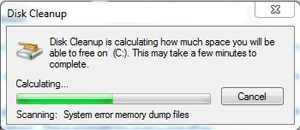
    Disk Clean Up:

    Disk cleaning will delete all your temporary files from any drive of your Disk. Here is the Procedure
    Press” Windows key + R”. 
    Type “cleanmgr” (without Quotes) and hit enter.
    Select the particular Disk that you want to Clean and click on “OK” and now you can delete all the temporary files. Repeat the same procedure for all the drives and it will really free some amount of memory in every drive.

    Defragment Disk:

    For Defragmenting the Disk follow the steps below:
    1. Right click on any drive and select PROPERTIES
    2. Click on TOOLS and select DEFRAGMENT NOW
    3. ANALYSE the dick first and then DEFRAGMENT it.

    Delete ”Old Windows” Files:

    Normally your files of OLD version of windows can be removed easily using DISK CLEAN UP. So you can follow the same procedure to delete the files of OLD WINDOWS

    Reduce Files on Desktop:


    Move all the files on your Desktop to any other separate drive.Every shorcut on desktop consumes 20kb of your RAM.If there are too many shortcuts then it is definitely going to effect the performance speed of your computer.You can use shortcuts on the desktop for easy navigation (Shortcuts are less in memory). 

    Using Proper Cooling System:


    Make sure that your Cooling fans are working fine. Try to clean the Dust from the surface of the fans to make it work properly. Provide good ventilation for PC’s and try to maintain the room cool so that Pc can perform better.

    Removing Visual Effects:

    Follow the steps below to disable unwanted Visual effects
    1. Go to CONTROL PANEL > SYSTEM AND SECURITY > SYSTEM >ADVANCED SYSTEM SETTINGS ( A box will pop up)
    2.  Click on SETTINGS of PERFORMANCE section.
    3. There check all the visual effects and remove those which are not need for your and save those settings

    Deleting Internet Cache

    There are many software’s available on internet to Delete internet cache but, CC Cleaner is the free software and its very effect in deleting the file temporary files.

    Use Revo Uninstaller to uninstall programs:

    Completely uninstall programs and applications using a program like Revo Uninstaller. It will get rid of registries left behind by normal uninstalls.

    Repairing Registry Files:


    There are many Good software’s available on internet to fix all your registry errors. You can pick anyone of them. I will suggest you to use TUNE UP UTILITIES as it perform better than much other software.

    Using Ready Boost:


    Connect a USB stick to a Windows computer – even on Windows 8 – and it will ask if you want to speed up your system using ReadyBoost. ReadyBoost was introduced in Windows Vista, where it was a heavily promoted feature.

    Upgrade your Hardware:

    Last but very important thing is to upgrade your hardwares.If you are still using old hardwares then its time for you to replace then to boost pc speed.
    If we missed out any important tweak let us know in your comments.
    Sai Charan
    About the Guest Author:

    Sai Charan a passionate blogger who enjoys writing articles on Computer Tricks,Facebook Tricks,Tech Updates etc.He is our Gold Star Contributor and co-author of AllTechBuzz.He Blogs at Tech Glitter.